Showing posts with label VLC Media Player. Show all posts

2012/11/18

Is Free VLC Back for i-Devices to Hit App Store?

Are you still missing the missing VLC media player for iPhone, iPad and iPod since it has been pulled down from the app store due to licensing issues?

VLC for iPhone-VLC App
Roughly two years ago, shortly after its release on App Store, Apple decided to remove it from the store. If you are not lucky enough to get VLC downloaded before it was pulled then good news is that this most welcomed free media players nowadays, with its abundant video formats supporting, awesome editing features and more updatings, is announcing its back to app store! Will it finally be shown on App Store once again?

Considering of the previous issue encounted, as the developers have changed the majority of software modules using software licenses, thus the media player is now switched to be licensed under LGPL (Lesser General Public License). LGPL which is unlike that of the GPL (General Public License), LGPL (Lesser General Public License) allows the application to be linked to the code that is not itself under the LGPL. As the president of VideoLan and lead developer, Jean-Baptiste Kempf, told the French PC Inpact: VLC is now legal to be put back on app store.

VLC Media Player, free, multi-platform, multifunctional, could play almost any video formats you throw at it. With it, you can watch movies on TV shows on your iPhone, iPad, or ipod ignoring the limitations of video formats your i-Devices support. That certainly would be a great improvement from the QuickTime!

Articles about VLC:

Free VLC Player: Why do We Choose VLC?
How to Enable Blu-ray Playback in VLC Player ?

2012/11/07

How to Enable More Video Formats Playback on iPhone?

Won’t it be a mood-killer when you are planning to watch some videos on your iPhone and suddenly realize that it only supports that few video formats while travelling on the train or bus? That’s no big deal; you can get rid of such awkward moments either by downloading some universal media player, or by converting the formats.

How to enable your iPhone play more videos of various formats? There are several solutions to get this solved.

1. Free video players:

FlexPlayer

FlexPlayer-iPhone Video Player
FlexPlayer is free media player for iPhone and iPod Touch as well as iPad.
Video formats it supports: AVI, MPEG, VOB, MKV, MP4 and MOV, FLV DivX, Xvid, and even Webm, etc. Playback of HD videos for QuickTime formats up to 1280x720 is available.
It possesses a user-friendly interface without ads. But it lacks of multiple audio track support and only hard subtitles allowed. Actually, you may encounter WMV video format, which may be a big flaw for it.


AcePlayer

AcePlayer-iPhone Video Player
Aceplayer is compatible with iPhone/iPod/iPad. Just transfer the media files to your i-devices by iTunes File Sharing or through Wi-Fi, video will be played.
Video formats it supports: WMV, AVI, RMVB, RM, MP4, 3GP, XVID, MPG, etc.
Audio formats supported: MP3, RM, ACC, FLV, RM, etc.
Subtitles: .smi, .srt, ssa, .ass, .sub txt.
But from its website, it seems it is not always free.


2012/10/30

Windows 7 to Windows 8:No DVD Playback and More

Windows 8 finally came to face the world on October 26th, with its several forms: Windows 8, Windows 8 Pro, Windows 8 RT, and Windows 8 Enterprise.

Are you going to update your Windows system from Win 7 to Win 8? If you are not decided yet, let’s check out how Windows 8 has changed compared with its previous version.

Windows 7 to Windows 8

1. The “Start” button is removed. As an initial option for all its previous versions, this menu has been there since Windows 95. So is the “Start” menu. This is designed to fully support the “start screen” full-screen menu, which changes from still to dynamic icon.

2. Windows Aero is killed. The Aero Glass - the graphical centerpiece of Windows Vista and Windows 7 disappears in Win 8 as to support Metro start screen.

3. Flip 3D is replaced by Modern UI app. All those animations and transparent glass effects are gone as well as the disappearance of Flip 3D. For Windows 7 or Vista, (key) Windows + Tab allow you to view Flip 3D.

4. Windows update desktop notifications won’t appear on the desktop. All notifications about Windows updates will be shown on the login and lock screens.

5. Some desktop apps will not be available on the desktop. Or will only be seen on the Windows 8 “start screen”.

6. Windows backup and restore is also no longer possible in Windows 8.
 
7. Windows Media Center and DVD playback
As Windows Media Center won’t be pre-installed as a default program, Windows Media Player is not available as well. If you do not install Windows Media Center and purchase Media Center upgrade, no DVD playback is allowed. Even if you download the feature packs will you only be able to play DVD in Media Center, not in WMP. To play DVD in Windows Media Player, an add-on for DVD support from Windows Store is necessary. But for free option, you can try VLC Media Player, or some other video players for DVD playback. Besides, Windows DVD Maker remains no more.

The reason for this is mainly because of the rise on streaming online videos and the decline in DVD and other traditional/physical discs.

Well, there is some kind of tricks we can solve some of the dislikes in Windows 8. After all, it provides many more promising new features. It's technology, people move on! What do you say?

Related Articles:

DVD Playback is not Supported in Windows 8 Without Built-in WMC
Best Free Options for DVD Playback in Windows 8
Best Free Video Player Software for DVD Playback 

2012/10/22

Best Free Video Player Software for DVD Playback

Although DVD has lost its past popularity as Blu-ray and online streaming boomed and have rapidly developed these years, many movies lovers, DVD collectors would still like to extend their DVD movies collection. For the sake of these guys, the free DVD players for DVD playback (for Windows) listed below would be useful, I hope.

1. Windows Media Player
If you are not using Windows 8, you may easily get DVD played on your computer. This default Windows Media Player developed by Software enables DVD playback. In Windows Media Player, you can play audio CDs, data CDs, and data DVDs that contain music or video files. If you have a DVD drive and a compatible DVD decoder installed on your computer, you can use Windows Media Player to play a DVD-Video disc.

2. Free Version BS Player
BS Player supports more than 90 languages and plays high definition videos in formats of DivX, HD and AVC video, movie, audio, DVD, etc. You can enjoy the playback of HD DVD and AVCHD movies of the highest quality with minimal system requirements by using BS Player.

BS Player works nice for DVD files on Android Smartphones and tablet PCs as well.

3. VLC Media Player
Needless to mention about its high reputation or powerful functions, this wonderful free video player VLC Media Player enables DVD playback. Generally speaking, almost any videos can be viewed through it. Besides, Windows 8 DVD playback is also available with it.

4. UM Player
UM Player is also free and open source video player software. It plays everything as displayed in its website. This media player features as advanced yet simple to use, cross-platform supportive, etc. Media formats such as AAC, AC3, ASF, AVI, DIVX, FLV, H.263, Matroska, MOV, MP3, MP4, MPEG, OGG, QT, RealMedia, VOB, Vorbis, WAV, WMA, WMV, XVID and many more, are all can be played with UM Player.

5. Real Player
Real Player, the product by a giant media enterprise Real Networks, plays more audio and video files than most media players. It allows video downloading from websites with a single click and then you can transfer them to mobile or other portable devices. Converting and editing also can be fulfilled with Real Player.

There should be more amazing video player software out there, if you guys have some recommendations, please feel free to leave a message for me to  enlarge my collections.

2012/10/15

How to Enable Blu-ray Playback in VLC Player ?


VLC Player- Blu-ray and VLCAs one of the most favored open-sourced and free media player of versatile functions, VLC media player enjoyed high reputation for its powerful playback feature. Just like what you’ve heard about VLC, it supports almost any video formats you got. Then how about Blu-ray?

How to enable Encrypted Blu-ray playback in VLC player? Below are some tips for your reference.

1. Free method
With some tricks, the latest VLC 2.0.x media player would be able to enable Blu-ray playback for most of them released before 2012. While BD+ is not supported.

To get Blu-ray to work in VLC run these commands:
Code: [Select All]
sudo add-apt-repository ppa:n-muench/vlc
sudo apt-get update
sudo apt-get install libaacs0 libbluray-bdj libbluray1
sudo apt-get dist-upgrade

Now we need to make an aacs folder and download the keys:
Code: [Select All]
cd ~/
mkdir -p ~/.config/aacs/
cd ~/.config/aacs/ && wget http://vlc-bluray.whoknowsmy.name/files/KEYDB.cfg

(This method is from pinguy, for more information you can refer to Blu-Ray Encrypted/Retail Playback & Ripping in VLC)

2. Official Method
You'll need two files: keys database and AACS dynamic library. For more related information check this forum out.
After some search and trail I’d also recommend you this video from YouTube to get Blu-ray discs played in VLC media player.


3. Easy method
If you do not want bother to make such complicated settings and adjustments, you may just try some useful tool to get the encrypted Blu-ray videos out and then play on VLC player. Well, this may cost some while saves trouble. The professional ripping tool I came across from this software from Cnet download site would definitely perfect your video viewing experience.

2012/09/18

Free VLC Player: Why do We Choose VLC?

Viewing movies on computers for enjoyment sometimes can be annoying when your video player software doesn’t go well with the video files. The ideal video player we’re dreaming of is like this: compatible with all OS and formats, user-friendly interface, safe and free will be even better.

The free and open-source VLC media player which can also be a streaming server becomes many people’s best choice for watching videos online over the past years. Why do we choose VLC player?

VLC-VLC Meida Player-free and powerful

Multi-platforms supported
As a cross-platform media player, VLC runs well in many operation systems: Microsoft Windows, OS X, Linux, Android, BSD, Solaris, iOS, Syllable, BeOS, MorphOS, QNX and eComStation

Any media file formats supported
Comparing with other video player, VLC stands out in this point when it supports almost every commonly-used media formats. Meanwhile, playback for some obscure or rarely-used formats can also be done.

Optional interfaces
VLC has a remote control interface and an ncurses interface. It allows custom selection of skins as it supports Winamp 2 and XMMS skins.

Transcoding
With a built-in transcoding tool, the media you throw into it can be output in form of another format.

Interesting video effects
It will be full of fun to add effects to the videos you are watching according to your own preference, just like an editing tool. Additionally, watermark such as text or image can be inserted into the video. Another interesting feature should be the puzzle game mode you can get with VLC.

Open-source and free, as such a powerful media player would be; VLC undoubtedly will be favored by many. In fact, VLC is not just for PC use, but also for portable devices playback as the Android VLC version is released on July 2nd this year for your Android Smartphone. VLC was available for the iPad, iPhone, and iPod Touch from the Apple AppStore, but was pulled due to a licensing conflict between the GPL and the iTunes Store agreement.

2012/09/13

Best Free Options for DVD Playback in Windows 8: VLC Media Player

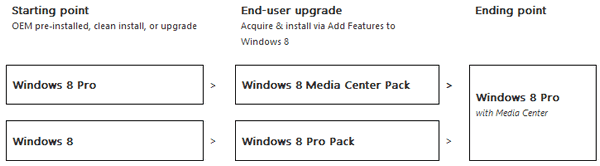
As is already not news, DVD playback is not supported in Windows 8 by default since it contains no pre-installed Windows Media Center in it. Some users find it annoying since sometimes there is need of DVD viewing. The officially recommended solution to this calls for updates of Windows 8 Pro pack, to get the Windows Media Center, which enables DVD playback. (As shown below)
Windows 8-window media center-updates path
I would rather not pay to get the Windows 8 pro pack just for DVD playback through Media Center while Windows Media Player is still not compatible with DVD. Here collects some awesome video players that can solve this problem completely and freely.

1. VLC Media Player (highly recommended)

Windows 8 DVD Playback-VLC media player
This “play-anything” video player invented by VideoLAN (non-profit organization) costs users nothing to play videos of almost any formats, DVD files included. Additionally, this free open-source video player software runs on all platforms, with Windows 8 on its list.

2. Free version of RealPlayer


Windows 8 DVD Playback-RealPlayer
As probably the world’s most widely used media player, RealPlayer allows media playback for almost any formats. It plays more file formats than Windows Media Player as announced on its official website homepage.(FYI)


3. KMPlayer

Windows 8 DVD Playback-KMPlayer
Maybe this one is not as well-known as the above two, yet it definitely is a brilliant free media player which supports various formats (including DVD), languages, skins, etc. This powerful media player, with its own internal Codec, internal or external, enables you to modify your environment to a convenient multi-media format by using KMP.(FYI)

There are many other free options to play DVD in Windows 8 PC, such as SMPlayer (with MPlayer as its playback engine and its own codecs without codec packs installment which save you much trouble), etc.

In spite of the media player as options for DVD playback in Windows 8, you can probably try other methods as well. DVD rippers to get the DVD videos in other formats for playback would be another way, I suppose. After all, it seems that Microsoft tried to strip the DVD playback function for consumers’ sake of reducing fees as has done of the opposite, I’m afraid.